


Doodle Master - Glow Art
4.75.29K Reviews
App Specs
- Version
- 2.2.36
- Updated On
- License
- Free
- Downloads
- 10,000,000+
- Developer
- Happy coloring
- Categories
- Art & Design
- Platform
- Android, iOS
Screenshots
 Analysis by AppCompare
I usually choose a drawing app by asking one simple question: do I want to make polished artwork, or do I want to play with an idea right away? Doodle Master - Glow Art sits firmly in the second camp. It is an art and design app from Happy coloring, built around glowing doodles rather than a full professional illustration workflow. I’d reach for it when I want a playful visual result without first learning a complicated set of tools.
That focus is also the main decision point. If you enjoy loose sketches, decorative lines, or adding luminous marks to a photo, its approach makes sense. If you need precise layers, advanced editing, or a workspace designed for finished client work, a conventional drawing or photo-editing app will suit you better. I find it more useful to think of this as a creative toy with practical uses than as a replacement for a studio tool.
What to expect from the glow-first approach
The appeal is immediate: the glow gives even a simple mark a distinct look. That can make a quick doodle feel more considered than it is, which is useful when you want a fun result but don’t have time to draw something elaborate. The trade-off is that the visual style is quite specific. If you’re after subtle pencil shading, lifelike brushwork, or restrained graphic design, the luminous treatment may feel too dominant.
For a first session, I’d start with a simple shape and test how the line looks at different sizes before filling a canvas. A bright effect can crowd small details, while broader strokes can make a more readable design on a phone screen. This small bit of experimentation helps avoid the common trap of adding glow everywhere until the drawing loses its focal point.
A useful choice for small creative breaks
The app makes the most sense in brief, low-pressure moments: while waiting for an appointment, relaxing after work, or looking for a light activity to share with a child. Its Everyone content rating makes it broadly approachable, though younger users may still benefit from an adult helping them understand any purchase prompts. The app is free to download, and optional in-app purchases are listed at $5.99 per item, so I’d try the free experience first and decide later whether anything paid is worth it to you.
It has a 4.7 average from around 95,000 ratings, and more than 10 million installs. Those figures suggest that the simple, accessible format has found a sizeable audience, but they don’t tell you whether its particular glow-heavy style will fit your taste. I’d treat them as context, not as a reason to skip trying a few sketches yourself.
When another kind of app is a better fit
Compared with general-purpose drawing apps, this one is easier to approach when you want a fast, decorative result, but it is less suited to careful illustration work. Compared with photo editors, its draw-over-photo idea is more playful than corrective: I’d use it to add personality to an image, not to retouch lighting or remove unwanted details. And compared with coloring apps, it gives you room to make your own marks rather than simply filling prepared shapes.
Worth Reading Before You Choose

Flipboard Shows What News Apps Must Do Beyond the Feed

Switching to Android Auto Means Rethinking Your Driving Routine

Google Calendar Makes a Crowded Week Easier to Manage

Ludo King Makes the Most of the Minutes Between Plans

Baby Panda World Brings Quick Play to Modern Phones, but Its Game Library Feels Busy

ESPN’s Live Game View Makes Following Close Games Easier
That distinction matters if you’re choosing one app for every creative task. A digital painting app is the better pick for detailed control and longer projects; a photo editor is better for clean image adjustments; and a guided coloring app may be more relaxing if you prefer a ready-made design. Doodle Master is strongest when the goal is spontaneous expression, not exactness.
Small habits that improve the result
When drawing over a photo, I’d keep the original image’s subject clear and use the glow to point toward it rather than cover it. On a pet photo, for example, a few marks around the outline or near the background can add a playful frame without hiding the animal. This also makes the finished image easier to read when viewed at a smaller size.
For a blank canvas, try building the design in stages: sketch the main outline first, pause to judge its balance, then add only a few accent strokes. A restrained palette can make the glow feel intentional, while using every color at once can turn a simple idea into visual noise. These are small choices, but they help the app’s signature effect work for you instead of against you.
Practical details before you install
The app was released on May 31, 2019, and its current version is 2.2.36. It requires Android 5.0 or later, which makes it an option for a range of Android devices. It is free, with optional purchases, so there is no need to commit financially before seeing whether you enjoy the drawing style. The developer is Happy coloring.
One question worth considering is whether this is a good fit for someone who has never drawn digitally. I think it is, because the low-pressure format encourages experimentation rather than demanding technical skill. Another is whether it can replace a more serious art app: for me, no. Its value is in quick, bright doodles and photo embellishment, while a dedicated illustration app remains the better choice for layered, precise work.
Unleashing Your Inner Artist
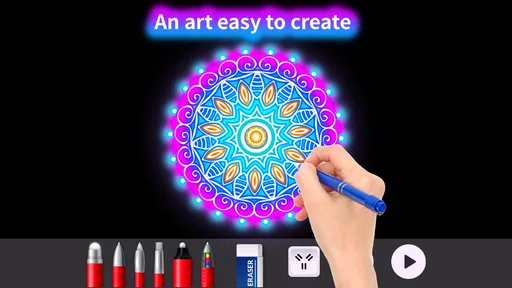
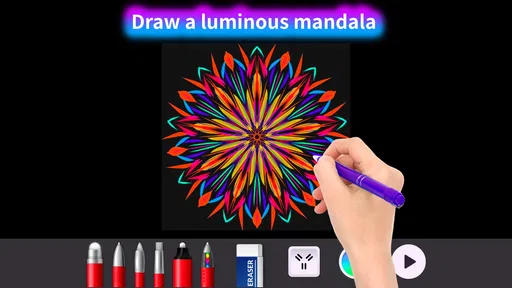
When you first open Doodle Master - Glow Art, you're greeted with a vibrant interface that’s incredibly inviting. The app is super intuitive, which means you don’t need a tutorial to get started. I was impressed with how quickly I could jump into creating glowy masterpieces. The color palette is expansive, offering a rainbow of choices to bring your designs to life.
Features That Shine
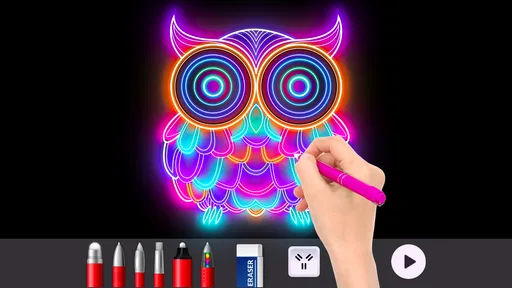
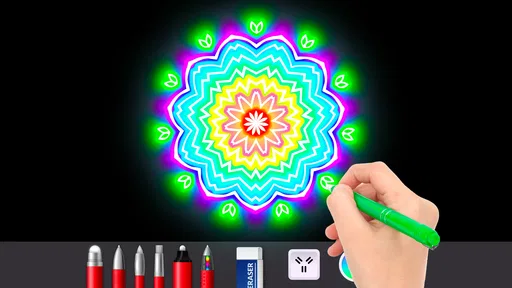
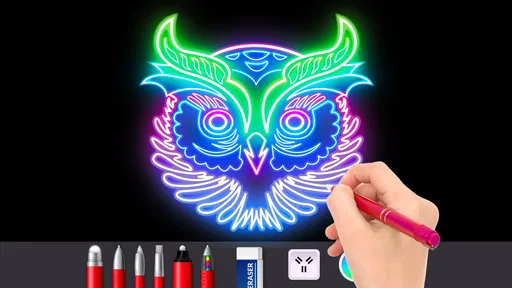
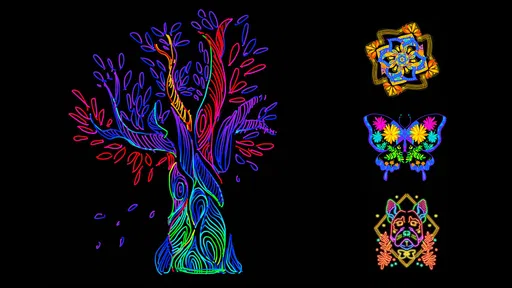
One of the standout features is the glow effect. It adds a magical touch to your doodles, making them look like they’re lit from within. You can adjust the brightness and intensity of the glow, which is a nice touch for those who like to experiment with different styles.
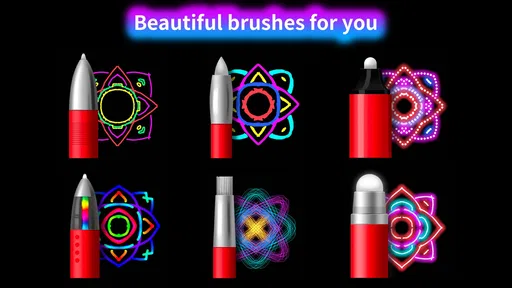
The app also offers various brush shapes and sizes. Whether you want to create fine lines or broad strokes, there’s a tool for that. Plus, the smoothness of the drawing experience is fantastic. There’s no lag, and your doodles appear instantly, which is crucial when you’re in the creative zone.
Creative Freedom and Fun
Now, let’s talk about the creative modes. The app allows you to doodle on a blank canvas or over a photo. The latter is particularly fun because you can take any image and transform it with glowy doodles. I spent way too much time adding glow effects to my cat photos, and the results were hilarious.
Another cool feature is the ability to animate your doodles. It adds a dynamic element to your artwork, making it come alive. You can share these animations directly on social media, which is perfect for showing off your skills to friends and followers.
If you’re making something to send to a friend, I’d keep the drawing’s purpose in mind before adding details. A quick animated doodle can work well as a lighthearted greeting, while a static embellishment may be easier to use when you simply want to make a photo more personal. I’d also preview the result at the size where it will be seen; a line that looks delicate on a large screen can become a bright patch when displayed small.
That makes the app handy for casual social sharing, but it is not automatically the best choice for every post. If the image needs careful cropping, color correction, or text laid out with precision, I’d finish those jobs in an editor made for them and use the glow drawing only where it adds something. Keeping those roles separate saves time and avoids expecting a doodle tool to solve photo-editing problems.
Why You’ll Love It
What I really appreciate about this app is its simplicity. It doesn’t overwhelm you with too many options, yet it provides enough tools to keep things interesting. The user interface is clean, and the tools are easy to find and use, which means more time doodling and less time navigating.
For a realistic everyday use, imagine having a few minutes at the end of the day and wanting to make a family photo feel a little more cheerful. I’d open the image, add a couple of bright marks that frame the subject, and stop before the effect takes over. That kind of quick, personal edit is where I see the strongest payoff: it gives you a small creative task with a visible result, rather than asking you to start a lengthy drawing project.
There is a useful balance to strike between spontaneity and control. The app’s easy entry encourages you to draw immediately, but the glow can make mistakes more conspicuous than they would be in a plain pencil sketch. I’d undo or simplify a messy section instead of trying to disguise it with more strokes. A cleaner outline usually looks more deliberate than a crowded one, especially when the canvas is viewed on a phone.
One practical question is whether a beginner needs to prepare anything before opening it. I don’t think so: you can begin with a blank canvas, and experimenting with a few brush shapes is a sensible way to learn the feel of the tools. If you choose a photo instead, pick an image with a clear subject and some open space around it. Busy backgrounds leave less room for decorative marks, so a lighter touch tends to work better.
Another consideration is whether the app is suitable for a longer, serious art session. It can be enjoyable to keep refining a doodle, but I would not choose it for work that depends on fine control or a complex production process. The glow is the point, and that same defining quality narrows its usefulness. I’d move to a more capable illustration app when I need a highly controlled final image, and come back here when I want something playful and quick.
Moreover, the app is free to use with some optional in-app purchases. The ads are minimal and don’t disrupt the creative flow, which is a huge plus in my book. If you’re someone who loves to have every feature unlocked, the paid version is reasonably priced.
Before spending on anything, I’d use the free version long enough to find out whether the glow style becomes part of your regular creative routine. The listed purchase price is $5.99 per item, so it’s worth judging each option on its own rather than assuming you need to unlock more to enjoy the basics. If your main goal is occasional doodling, a small set of tools may be all you need; if you expect to use it often, you can decide whether a purchase adds enough value for your habits.
It is also worth being clear about what “sharing” means for your own workflow. The app’s animation option gives doodles movement, which can make a simple idea more expressive than a still image. For a polished post or a project that needs consistent branding, though, I’d check the finished result carefully and use a dedicated editor for any final adjustments. This is an easy place to lose time if you keep adding effects instead of deciding what the picture is meant to communicate.
Who should skip it? I’d point away anyone who mainly wants a realistic painting tool, a precise photo retoucher, or a structured coloring experience with prepared designs. The app’s appeal depends on enjoying freehand marks and the bright, glowing finish. If that look feels distracting rather than fun, a more traditional drawing app will probably be a better everyday choice.
Who is most likely to enjoy it? I’d recommend it to casual doodlers, people who like decorating photos, and anyone who wants an approachable creative activity that doesn’t require a plan. It is also a nice option for sharing a playful visual with friends, provided you are happy with a stylized result rather than a carefully edited one. The decision is less about artistic skill and more about whether you like the distinctive glow treatment.
Final Thoughts
Overall, Doodle Master - Glow Art is a delightful app that can turn anyone into a glowing doodle artist. It’s perfect for unwinding after a long day or when you just want to have some fun. The combination of ease of use, creative features, and the sheer joy of watching your art glow makes it a fantastic addition to your app collection.
If you’re ready to bring out your inner artist and light up your doodles, give this app a try. I promise, you won’t be disappointed!
My recommendation is simple: give it a try if you want fast, expressive glow drawings and photo decorations, but keep a general drawing or editing app for jobs that call for accuracy. The key trade-off is clear: Doodle Master favors instant fun over deep control. If that matches what you want from a creative break, it is an easy app to explore; if not, choosing a tool built around your preferred style will save you frustration.
Pros
- Intuitive and easy-to-use interface.
- Wide variety of vibrant color options.
- Share creations directly on social media.
- Supports high-resolution output for prints.
- No in-app purchases required for main features.
Cons
- Ads can be intrusive at times.
- Limited brush styles available.
- Lacks advanced editing tools.
- Requires internet for full functionality.
- No option to save progress automatically.
FAQs for Doodle Master - Glow Art
What is Doodle Master - Glow Art and how does it work?
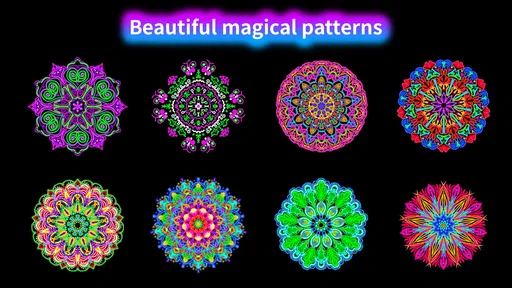
Doodle Master - Glow Art is a creative drawing application that allows users to create stunning glow-in-the-dark artworks using a variety of vibrant colors and tools. The app provides a user-friendly interface where you can select from different brushes and patterns to craft unique designs, making it ideal for both beginners and experienced artists.
Is Doodle Master - Glow Art free to download and use?
Doodle Master - Glow Art is available as a free download on both Android and iOS platforms. While the basic features are accessible at no cost, the app may offer in-app purchases for additional brushes, patterns, or to remove ads, providing an enhanced creative experience for those interested.
What features does Doodle Master - Glow Art offer?
The app includes a variety of features such as a wide selection of glowing brushes, multiple color palettes, and pattern options. Users can also save their creations, share them on social media, and enjoy an intuitive interface that makes drawing accessible and fun for all ages. The glowing effect adds a unique touch to your digital artwork.
Is Doodle Master - Glow Art suitable for children?
Yes, Doodle Master - Glow Art is suitable for children. The app is designed to be intuitive and easy to navigate, making it a great tool for kids to explore their creativity in a fun and safe environment. Parental guidance is recommended if in-app purchases are available, to ensure a seamless experience.
Does Doodle Master - Glow Art require an internet connection?
Doodle Master - Glow Art does not require an internet connection to create and save doodles. However, an internet connection may be needed for certain features like sharing your artwork on social media or accessing in-app purchases. This allows users to enjoy the app offline while providing additional online functionalities.


